Best AI Clipping Tools in 2026: Klap vs OpusClip vs Spikes Studio
Last updated: 25 November 2026 · By Abdul Sami, AI Orion · We earn a commission from Klap links on this page, at no cost to you.
AI clipping tools take a long video, such as a podcast, webinar, tutorial or stream, and turn it into short vertical clips for YouTube Shorts, TikTok and Instagram Reels. They find the moments that work on their own, crop them to 9:16 and add captions, which saves hours of manual editing.
This guide compares three popular options, Klap, OpusClip and Spikes Studio, and then walks through the whole process step by step.
Quick comparison
Prices from each tool's pricing page, checked 25 November 2026, in USD.
| Klap | OpusClip | Spikes Studio | |
|---|---|---|---|
| Free option | Trial: 1 video, preview and edit only (no downloads) | Free plan: 60 credits/mo, 1080p, watermark, no editing, clips exportable for 3 days | Free plan: about 30 min of video a month, 720p, watermark |
| Cheapest paid plan | Basic: $29/mo, or $14.50/mo billed yearly | Starter: $15/mo (monthly only) | PRO+: $32.99/mo, or $14.09/mo billed yearly |
| Allowance | 100 clips/mo (Basic) | 150 credits/mo (Starter) | 300 min of video/mo (PRO+) |
| Virality score | Yes | Paid plans | Yes |
| Reframing to vertical | Active-speaker reframing | 9:16 on all plans; 1:1 and 16:9 on Pro | Auto reframe on paid plans |
| Scheduling | All paid plans | Auto-post on Starter; full scheduler on Pro | PRO+ |
| Languages | 99+ | Captions in 20+ languages | not stated |
| Best for | Simple long-video-to-clips workflow with scheduling built in | Creators who want the most editing tools (B-roll, voice-over, brand templates) | Trying AI clipping for free, and streamers |
The tools
1. Klap
Klap is built around one job: turn a long video into ready-to-post clips and get them published. You paste a link or upload a file (videos up to 3 hours long), it picks the clips and gives each a virality score, and you can edit and schedule from the same place.
- Key features: AI clip selection with virality score, active-speaker reframing, animated captions in 99+ languages, editor with B-roll and hook titles, scheduling to TikTok, YouTube, Instagram, LinkedIn and Facebook, post analytics
- Free option: one-video trial with no card, but downloading and posting needs a paid plan
- Pricing: Basic $29/mo (100 clips), Pro $79/mo (300 clips), Pro+ $189/mo (1,000 clips). Billed yearly, each is half price.
- AI Orion readers get 30% off the first payment with code
8GLT5LYB.
Good for: podcasters, educators and marketers who want clipping and scheduling in one tool without learning a full editor. Keep in mind: the trial doesn't let you download, so you'll need a paid plan to actually post clips.
2. OpusClip
OpusClip is one of the best-known clipping tools, with the widest set of editing features. Beyond clipping by what's said, the Pro plan can pick clips by visuals, sound and emotion, and adds AI B-roll, voice-over, eye-contact correction and brand templates.
- Free option: free plan with 60 credits a month and 1080p clips, but with a watermark, no editing, and clips that can only be exported for 3 days
- Pricing: Starter $15/mo, monthly only (150 credits, virality score, editor, watermark-free export and auto-posting to YouTube Shorts, TikTok and Reels), Pro $29/mo or $14.50/mo billed yearly (adds a social media scheduler, team workspace, AI B-roll, more aspect ratios and Premiere Pro/DaVinci export), Business custom
- Good for: creators who want to do more editing inside the clipping tool.
- Keep in mind: the full scheduler starts at the Pro plan, and the long feature list takes longer to learn.
3. Spikes Studio
Spikes Studio prices by minutes of video rather than clips, and has a free plan that's useful for trying AI clipping before paying. It is popular with streamers.
- Free option: about 30 minutes of video a month, 720p export with a watermark, files kept 7 days
- Pricing: PRO+ $32.99/mo or $14.09/mo billed yearly (300 min/mo, 1080p, animated captions, auto reframe, scheduler), Enterprise $115.99/mo or $56.34/mo billed yearly (1,200 min/mo)
- Good for: trying AI clipping at no cost, and long streams where minute-based pricing fits.
- Keep in mind: the free plan's 720p watermarked export isn't great for posting.
Klap vs OpusClip
These two come up most often when people compare clipping tools.
| Klap | OpusClip | |
|---|---|---|
| Entry price (monthly billing) | $29/mo (Basic) | $15/mo (Starter) |
| Scheduling | All paid plans | Auto-post on Starter; scheduler on Pro ($29/mo) |
| Free option | 1-video trial, no downloads | Free plan: watermark, no editing, 3-day export window |
| Pricing unit | Clips per month | Plan features and credits |
| Strength | Simple, all-in-one workflow | Deepest editing toolset |
Pick Klap if you want the shortest route from long video to scheduled posts, and don't need advanced editing. Pick OpusClip if you want B-roll, voice-over and detailed editing inside the clipping tool.
Looking for an OpusClip alternative?
People usually look elsewhere when they want a simpler workflow or different pricing. Klap is the closest like-for-like alternative, with scheduling on every paid plan. Spikes Studio is worth a look if you mainly want a free option or clip long streams. See more on our OpusClip alternatives page.
How to turn one long video into Shorts, TikToks and Reels
The process is similar in every tool. Here it is in Klap.
Step 1: Add your video
Sign in at Klap and paste a YouTube link or upload the file. Klap also accepts links from Twitch, Vimeo, Loom, Google Drive and Dropbox. Videos can be up to 3 hours long.
Tip: to get clips on one topic only, describe it in the prompt box, e.g. "only the parts with practical tips."

Step 2: Let the AI pick the clips
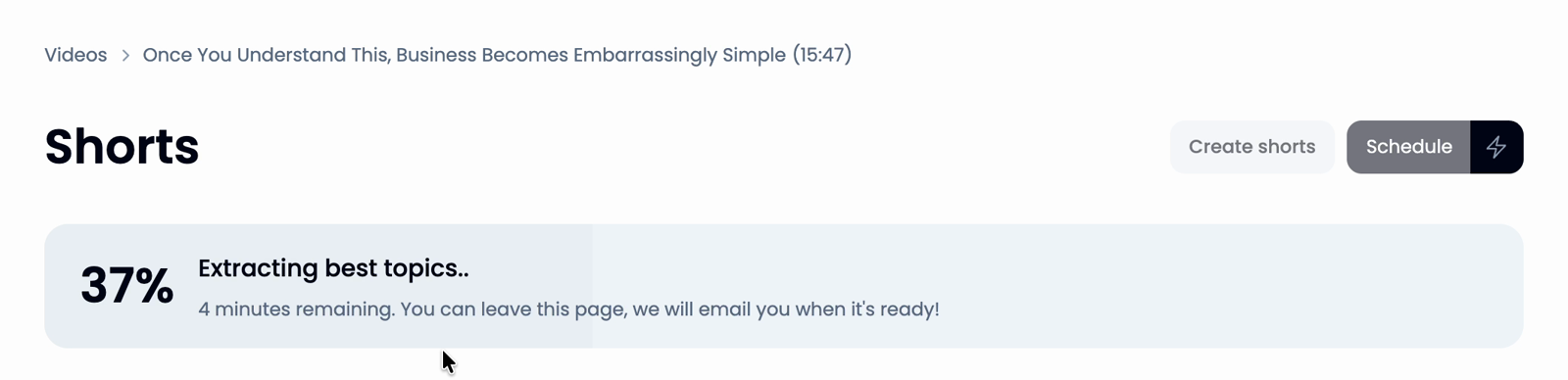
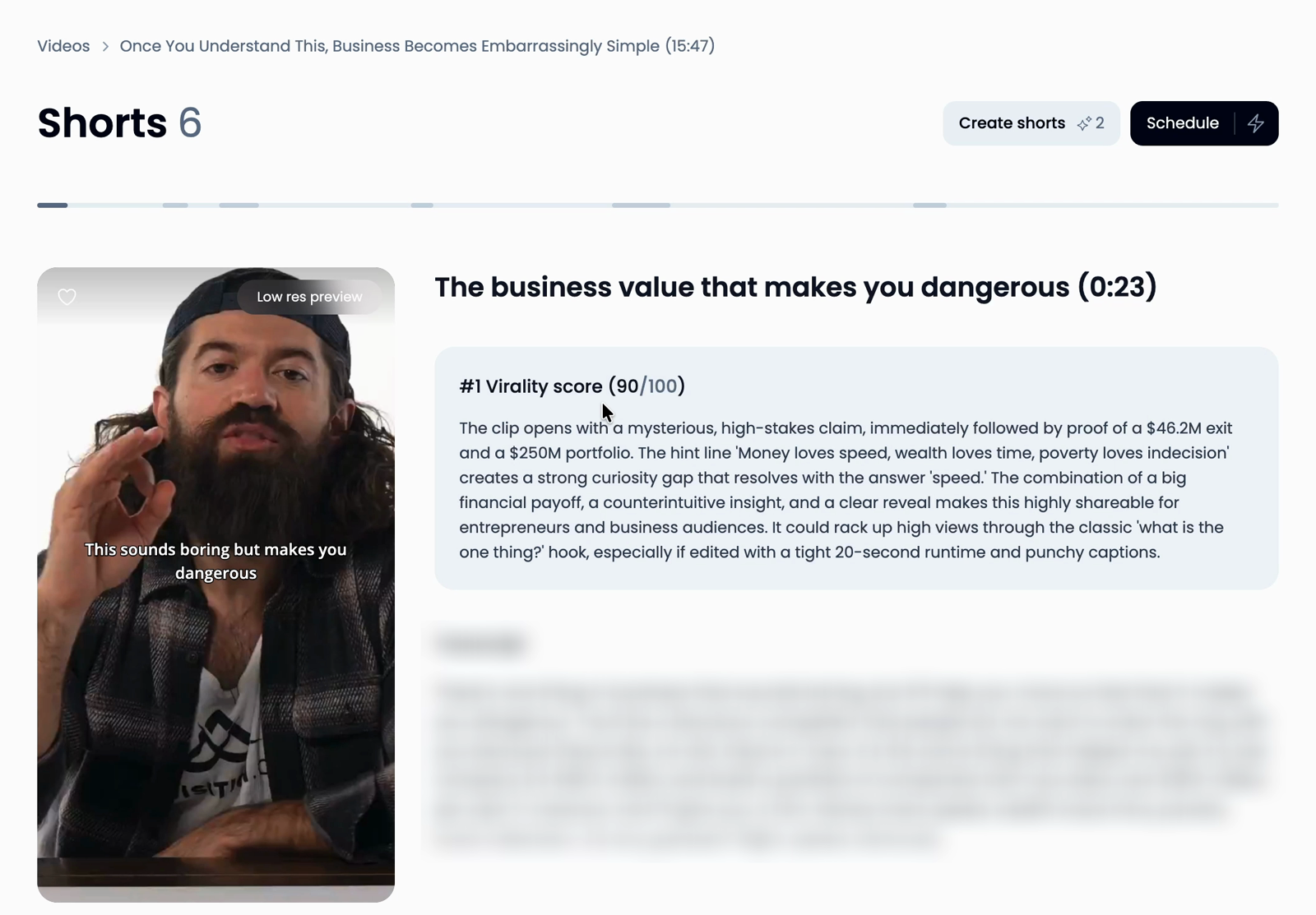
Klap transcribes the video, finds moments that work on their own and cuts them into vertical clips. Each clip gets a virality score with a short explanation.
Treat the score as a guide, not a promise. It helps you decide which clips to look at first, but you should still watch every clip before posting.
Step 3: Review and trim each clip
This is where your judgement matters most. For each clip, check:
- Does it make sense on its own? Viewers have no context. Cut openings like "and that's why…".
- Does it end cleanly? AI tools sometimes stop a beat early or late.
- Is the first second strong? People decide to keep watching almost instantly.
In Klap you can edit by transcript: select the words you want to remove and the video is cut to match.
Step 4: Check the framing
Going from horizontal (16:9) to vertical (9:16) means cropping, and the speaker has to stay in frame. Klap's reframing follows whoever is talking.
Tip: for screen recordings, use a split layout with the speaker on top and the screen below. Cropping a screen straight to vertical makes text too small to read.
Step 5: Fix the captions
Most short videos are watched on mute, so captions matter. Read every caption before exporting: names, brands and technical terms are where AI transcription usually slips. Save your caption style as a preset so every clip looks consistent.
Step 6: Export or schedule
Download clips as MP4s, or schedule them to TikTok, YouTube, Instagram, LinkedIn or Facebook from Klap's calendar. Instagram needs a Professional account, and Facebook posts go to a Page.
Tip: post the same clip on all three platforms, but spread them over a few days and see where each one does best.
FAQ
Can I clip someone else's YouTube video? Only if you own it or have permission. Reposting other creators' content can get clips taken down and your account flagged.
How long should a clip be? Between 20 and 60 seconds works well on all three platforms. YouTube Shorts allow up to 3 minutes, but shorter clips are more likely to be watched to the end.
Is there a free AI clipping tool? OpusClip and Spikes Studio both have free plans with limits (watermarks, export windows, lower resolution). Klap has a free trial for one video, but you need a paid plan to download.
Do I still need a video editor? Not for most talking-head clips. You'll still want one for heavy edits such as music syncing or combining several clips.
Bottom line
All three tools do the core job: find the best moments in a long video and turn them into vertical clips with captions. Klap suits people who want the simplest path from long video to scheduled posts. OpusClip suits creators who want the most editing features. Spikes Studio is the easiest way to try AI clipping for free. Whichever you pick, review every clip before posting, because the AI does the first pass and you decide what goes out.